A new organisation with no servers opens on one setup page. Later, go to Settings, then Servers & agents, then Add a server. Only owners and admins can add servers.
The four steps
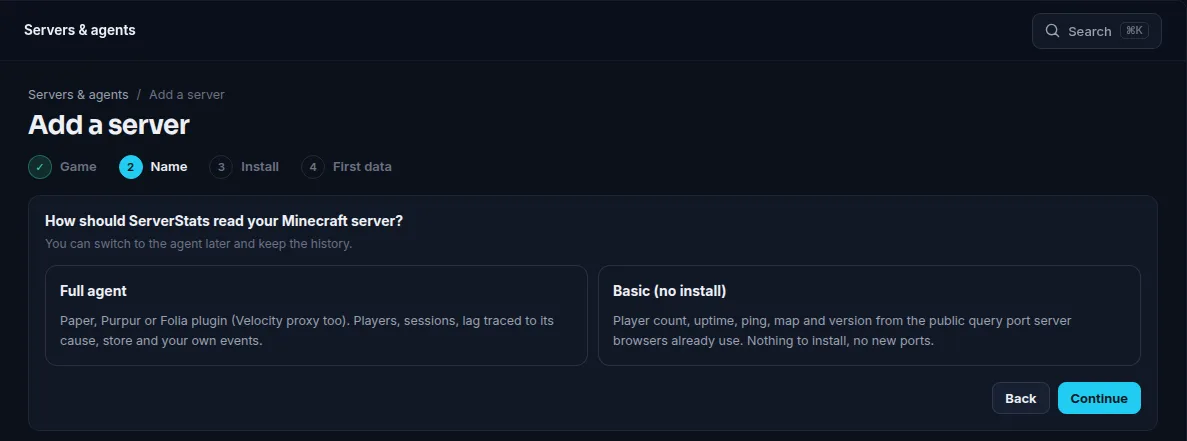
- Game. Pick the game. This decides which metrics and install instructions you get. FiveM and RedM are different choices, so pick the right one.
- Name. Give it a label such as
survivalorlobby. You can leave it empty: the agent can supply a name from its own config. - Install. The wizard shows a claim code that looks like
SS-XXXX-XXXX-XXXX, the download, and a config snippet for your game. See install by game for the steps per game. - First data. A checklist ticks off three things: Agent enrolled with its own key, First batch received and First readings stored.
What the claim code is
The code works once and expires after 30 minutes. It is not a password. The agent uses it one time to register its own public key; after that every batch it sends is signed with a private key that never leaves your machine. If a code expires or is used, open the server's settings and click New claim code.
How long until data appears
Agents send a batch every 10 seconds, so the first numbers normally appear within a minute of a successful claim. If the checklist stays on "waiting", see the agent is not sending data.
Limits
Free allows one server. If you add a server beyond your plan, it is blocked on creation with a plan-limit message; if you later drop to a smaller plan, extra servers are paused, not deleted (details). A Velocity proxy and each backend server count as separate servers.