To install ServerStats on a Rust server, copy ServerStats.cs into carbon/plugins/ (Carbon) or oxide/plugins/ (Oxide/uMod), let it compile, then claim it with the one-time code from the dashboard: serverstats.claim SS-XXXX-XXXX-XXXX in the server console or over RCON. It is one file for both frameworks, needs no open ports, and reports within a minute.
Below: the exact paths, config keys and commands, how to check it's working, and fixes for the usual problems.
Step 1: Check the requirements
- A Rust dedicated server with Carbon or Oxide/uMod already installed. The plugin is a normal C# plugin; either framework compiles it on load.
- Access to the server console or RCON (WebRCON, RustAdmin or your host's console all work). Plugin console commands are admin-only.
- Outbound HTTPS (TCP 443) to
serverstats.cc. Nothing connects in, so there are no ports to open or forward. - A ServerStats account. The Free plan covers one server; see pricing for more.
Linux servers are the tested path. The plugin also runs on Windows servers, but Windows is untested so far.
Step 2: Download ServerStats.cs
Download ServerStats.cs. On a Linux host, from the server's root folder:
curl -fLo ServerStats.cs "https://serverstats.cc/downloads/rust/ServerStats.cs?v=4"
curl -fLO https://serverstats.cc/downloads/rust/SHA256SUMS
sha256sum -c SHA256SUMS
The file is on serverstats.cc rather than the uMod site because it signs and gzips batches on a background thread, which uMod's guidelines discourage (see the FAQ).
Step 3: Drop it into the plugins folder
| Framework | Plugin goes in | Config it writes | Data folder |
|---|---|---|---|
| Carbon | carbon/plugins/ | carbon/configs/ServerStats.json | carbon/data/ServerStats/ |
| Oxide/uMod | oxide/plugins/ | oxide/config/ServerStats.json | oxide/data/ServerStats/ |
Both frameworks watch the plugins folder, so the plugin compiles and loads without a restart. On first load it creates the config and generates its own Ed25519 key pair in agent.key in the data folder (mode 0600 on Linux).
Step 4: Create a claim code in the dashboard
In the dashboard, open Servers & agents and click Add a server. Pick Rust, name the server (for example EU Main 2x), and the Install step shows your claim code, SS-XXXX-XXXX-XXXX, with the download button.
The code works once and expires after 30 minutes. It only introduces the plugin's public key to ServerStats; after that every batch is signed with the plugin's private key, so there is no shared secret to leak.
Step 5: Claim the server
From the server console or RCON:
serverstats.claim SS-XXXX-XXXX-XXXXOr put the code in the config and reload the plugin:
{
  "Claim code": "SS-XXXX-XXXX-XXXX",
  "Server name": "EU Main 2x",
  "Track wipes": true,
  "Moderation": false,
  "Send player names": true,
  "Deep metrics": false,
  "Lag spike (ms)": 250
}c.reload ServerStats (Carbon)
oxide.reload ServerStats (Oxide)After a successful claim the plugin blanks "Claim code", sets "Enrolled (set by the plugin)": true and prints the key fingerprint (SHA256:...); the dashboard shows the same fingerprint in the server's settings.
Useful keys:
Server name: your label. If empty, the server'sserver.hostnameis used.Track wipes: detects map wipes (seed, size, map or save changing) and sends wipe age; blueprint wipes are detected heuristically. Leave it on for wipe analytics.Lag spike (ms): a frame this long counts as a lag spike and is attributed to plugins. The default is 250.Moderation: dashboard kick, ban, mute and message. Off by default, and it must also be turned on for the server in the dashboard.Deep metrics: opt-in, higher-volume data such as entity breakdowns by prefab.
If you break the JSON while editing, the plugin runs on defaults and does not overwrite your file, so a claim code in it is never lost. Fix the syntax and reload.
Step 6: Check that data is arriving
serverstats.statusThis prints enrolment, the key fingerprint, the link state, the last send, the offline buffer, whether the server is paused by its plan, moderation, current server FPS and the plugin's own main-thread cost. In the dashboard wizard, the First data checklist ticks off Agent enrolled with its own key, First batch received and First readings stored. Batches go out every 10 seconds.
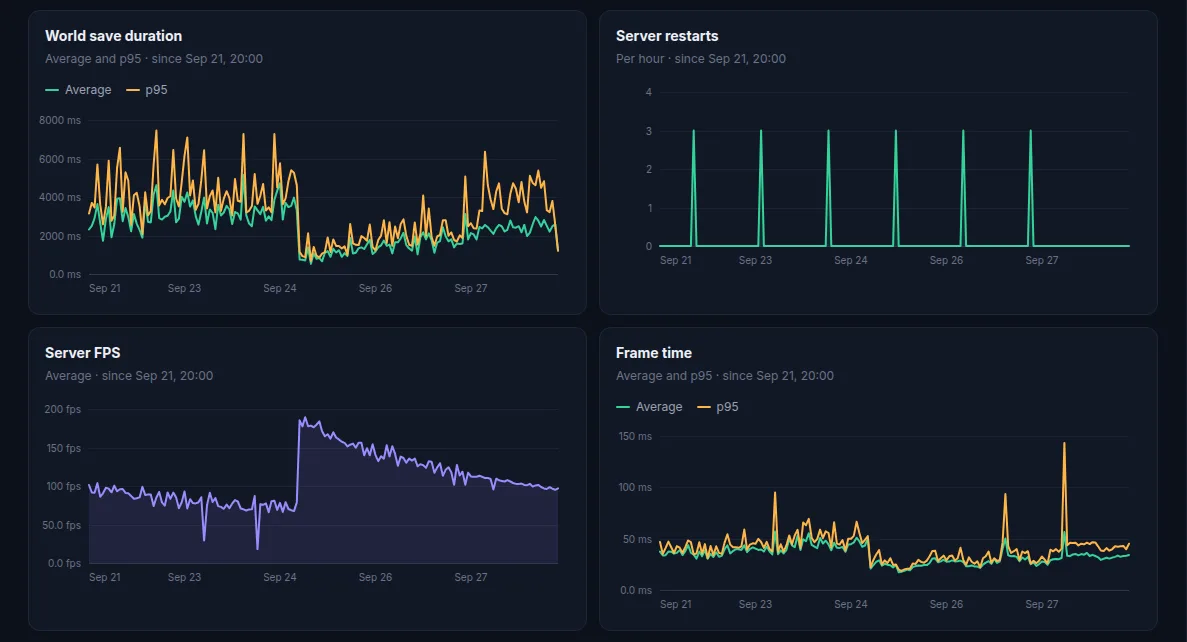
*Server FPS, frame time and save duration over 24 hours.
From then on you get server FPS and frame times, entity counts, save durations, per-plugin hook time, players, queue and sleepers, wipes, raids, and the economy (scrap, recyclers, vending). Every frame over the lag spike threshold is attributed to the plugins whose hooks ran in it, or to saves, garbage collection or physics. What's a normal server FPS?
Verify your download
Every release is signed. SHA256SUMS lists the hash of each published file and SHA256SUMS.sig is its Ed25519 signature, made with the ServerStats release key. To check the signature and your copy of ServerStats.cs:
curl -fLO https://serverstats.cc/downloads/release-signing-key.pub.pem
curl -fLO https://serverstats.cc/downloads/SHA256SUMS
curl -fLO https://serverstats.cc/downloads/SHA256SUMS.sig
openssl pkeyutl -verify -pubin -inkey release-signing-key.pub.pem -rawin -in SHA256SUMS -sigfile SHA256SUMS.sig
grep " rust/ServerStats.cs$" SHA256SUMS
sha256sum ServerStats.cs
The first command prints Signature Verified Successfully; the last two hashes must be identical.
Troubleshooting
- Status shows link errors or nothing is sent: the server can't reach
serverstats.ccover HTTPS. Test withcurl -sI https://serverstats.ccfrom the host and allow TCP 443 outbound; some game hosts filter outbound traffic and can whitelist it. Meanwhile batches go to a disk buffer (50 MB, 7 days at most) and are sent oldest first when the link is back. - The plugin doesn't compile: check the Carbon or Oxide log for the error. Make sure the framework itself is up to date for the current Rust build; after a forced Rust update, update Carbon or Oxide first.
- Claim code rejected as invalid: check for a typo; codes look like
SS-XXXX-XXXX-XXXX. - Expired or already used: codes last 30 minutes and work once. A refused code is not retried. Open the server's settings, click New claim code and run
serverstats.claimagain. - Key rejected after moving hosts or restoring a backup: a newer claim elsewhere replaced this key. The plugin stops sending, keeps buffering, logs what to do and re-checks every 10 minutes.
serverstats.claimwith a fresh code resumes it at once and sends the buffer. - "Paused" in status: your plan's server limit is reached. Remove a server or upgrade.
Updating and uninstalling
Update: replace ServerStats.cs in the plugins folder. The framework recompiles and reloads it. The key, state and open sessions in the data folder are kept, and a plugin reload is not counted as a server restart.
Uninstall: delete ServerStats.cs from the plugins folder (the framework unloads it), then delete ServerStats.json and the ServerStats data folder. In the dashboard, open the server's settings and click Remove server…; data from that agent stops being accepted at once.
What the plugin sends
Counters and timings about the server and its gameplay, sessions, and wipe markers. It never collects chat text, F7 report text, kick or ban reasons, IP addresses or coordinates: positions are reduced to a map grid cell like G12, and chat is only counted per channel. Players travel as their SteamID64 over TLS and are replaced with a keyed hash at ingest, so analytics use a pseudonymous ID. More on the security page and the Rust page.
 Rust